

Guide
Get Started Get Started Access Now

Get exclusive resources, gig management tips, and tools straight to your inbox.
A Guide To
Adding your first event is one of the quickest ways to start seeing the value of Stage Portal. Once your events are inside the system, all your logistics, communication, riders, schedules, and crew information work together automatically.
This guide will walk you through how to create your first event inside Stage Portal, whether it’s a gig, rehearsal, tour date, or festival slot.
To follow this guide, you’ll need:
If you haven’t set up your profile yet, you can complete that first:
Guide: How to Set Up Your Band in Stage Portal
Once you're logged in:
or
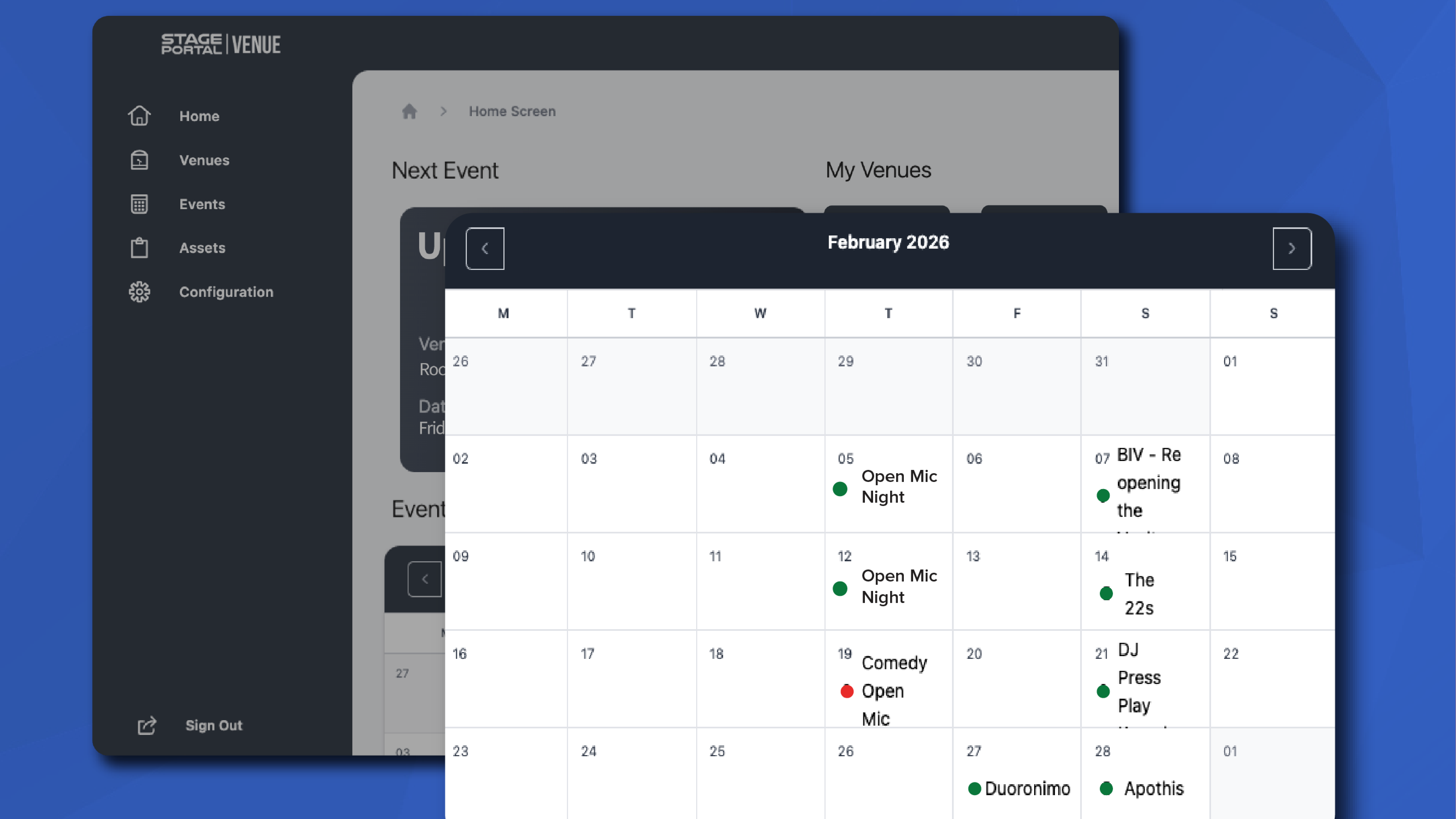
Next you’ll see your Events Dashboard, this will become your main overview of all upcoming and past gigs.
Tip: Your events dashboard becomes more powerful as you add more information. It will show automatic status updates, rider progress, setlist visibility, and more.
In the top right corner, click:
➕ Create Event
This opens the event creation form where you’ll enter the core details for your gig.
Here you’ll enter all the key information, including:
Event Name
Give your event a clear title.
Examples:
Event Type
Choose from the dropdown:
This helps organise your dashboard later.
Date & Time
Add your event date, load-in time, soundcheck time, and stage time.
Stage Portal will automatically begin to build your run sheet from this.
Location
Add the venue name and address.
Venues using Stage Portal will automatically sync details with you.
Add Notes (Optional)
Use this for anything important: parking details, promoter contacts, gear reminders.
You can complete this step immediately or come back to it later.
By building and adding your rider you can attach:
All of this becomes visible to the relevant people automatically, no forwarding messages required.
This is optional but to keep your band up to date you can click on the setlist tab and select one your saved setlists or add a new one to the event.
If you have multiple gigs you would like to add quickly, you can use the bulk upload feature in Stage Portal.
On the main dashboard select the configure button on the left hand side. Here you can download the example .csv file and add your gigs into the file. Make sure to add the right details to the right column.
Simply then upload your .csv file into Stage Portal and all of your gigs will be in the system, ready to go.
Once your first event is created, you can explore these features:
👉 How to Build Your Rider in Stage Portal
👉 How to Create Your Stage Plot
👉 How to Use the Setlist Creator
👉 How to add expenses
Discover the latest insights.